H Hidden Eyes SystemAccountРусский

CONNECTION HELP

How to connect

Copy your link, choose a device, and follow the steps for its app.

PHONE OR TABLETAndroidShow Happ, Incy, and other apps
HappImport and connect with a link
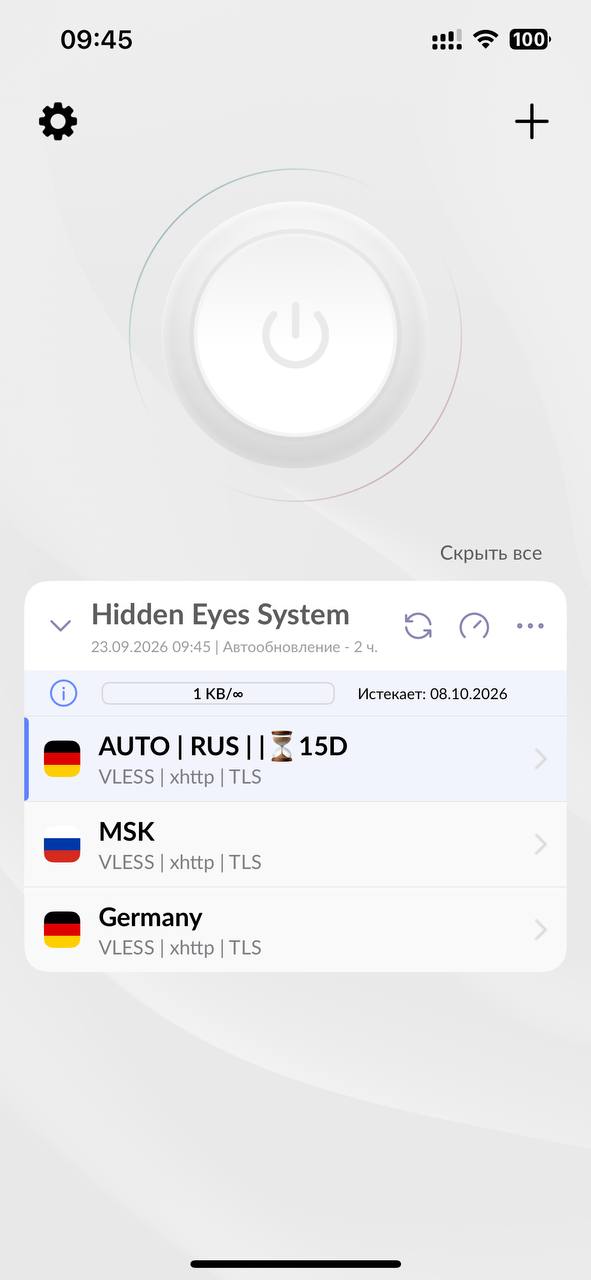
Happ screen after adding a subscription: add control, profile list, and connect button
1. Open subscription setup and paste the copied link. 2. Choose a profile. 3. Connect and confirm the system prompt. Open full-size image ↗
IncyAdd your subscription in three steps
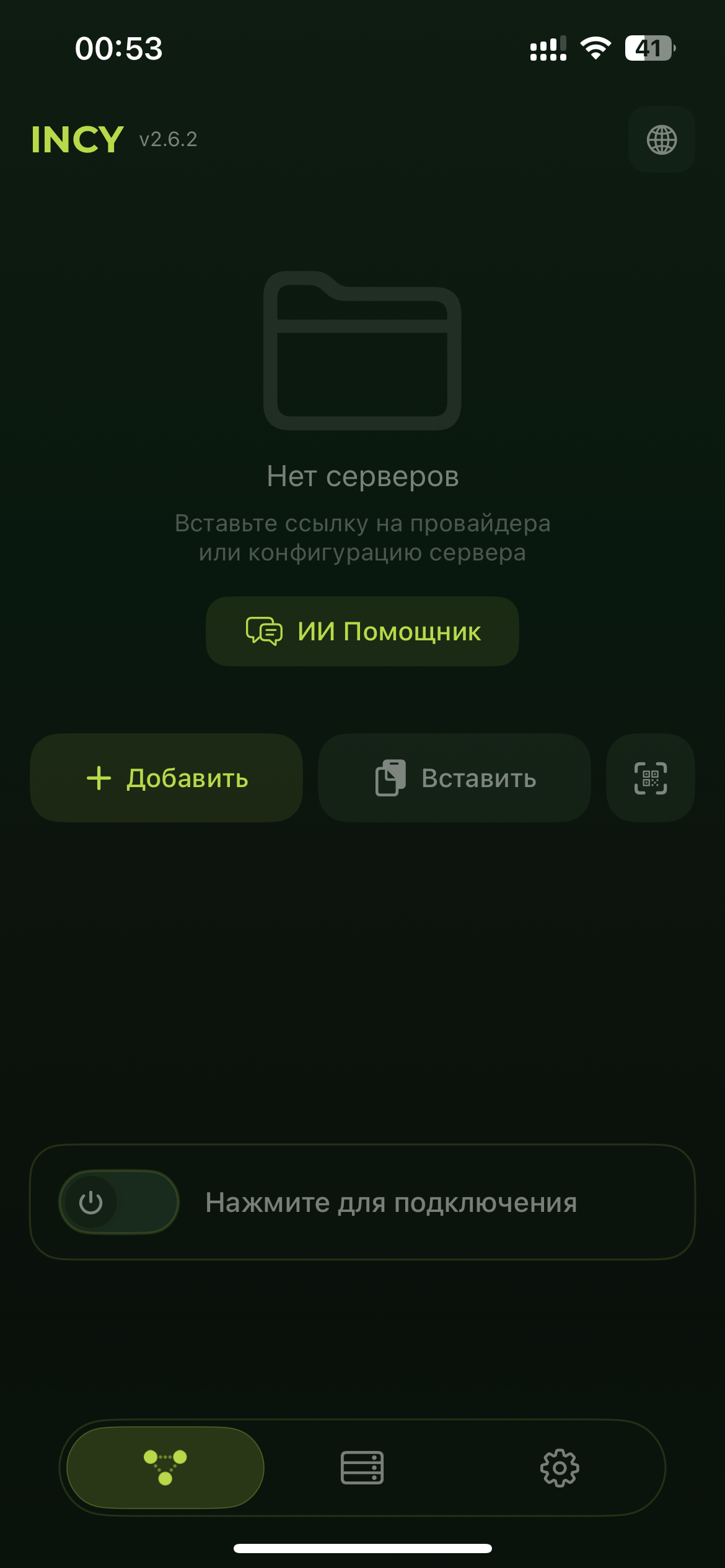
Incy home screen with the Add button
1. Tap “+ Add” on the home screen. Open full-size image ↗
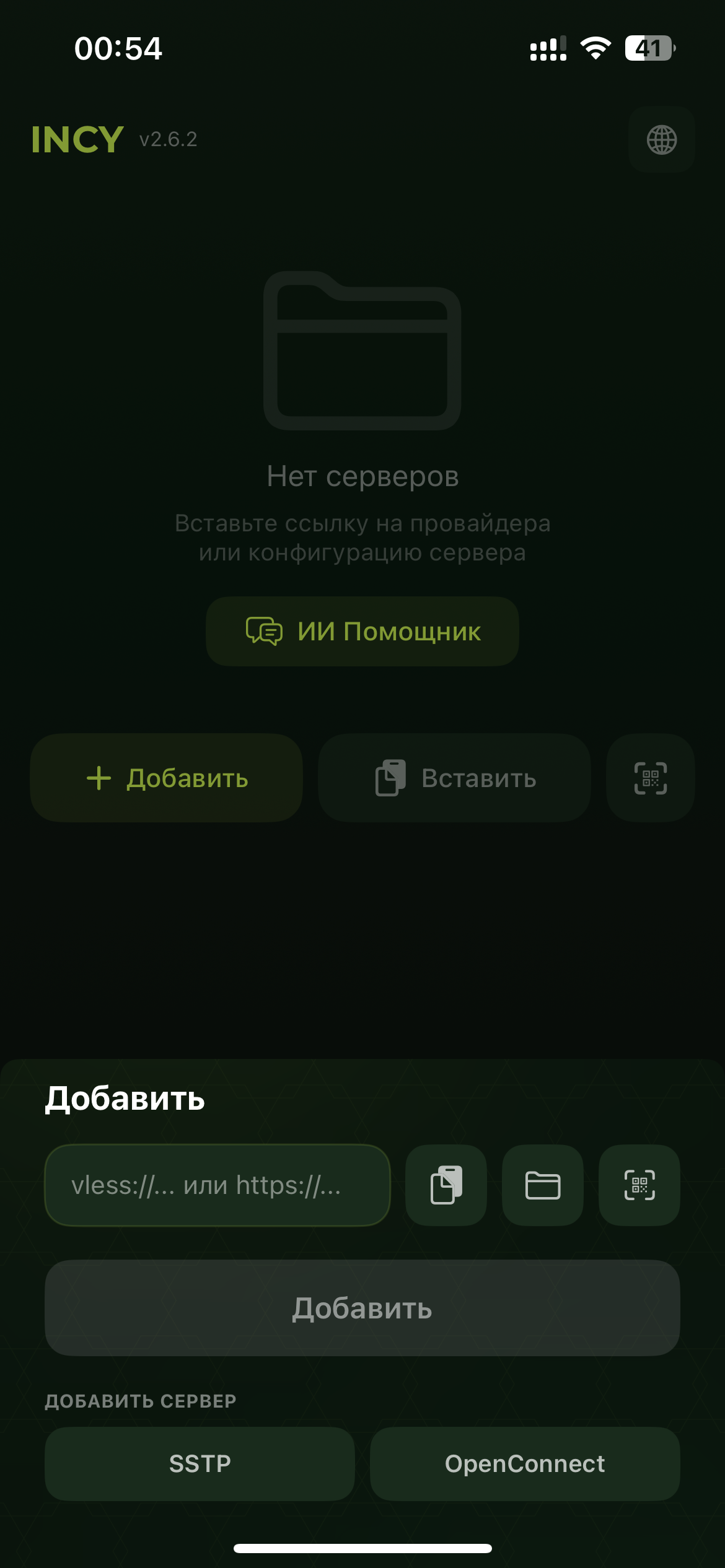
Incy form with a subscription link field and Add button
2. Paste your subscription link, then tap “Add”. Open full-size image ↗
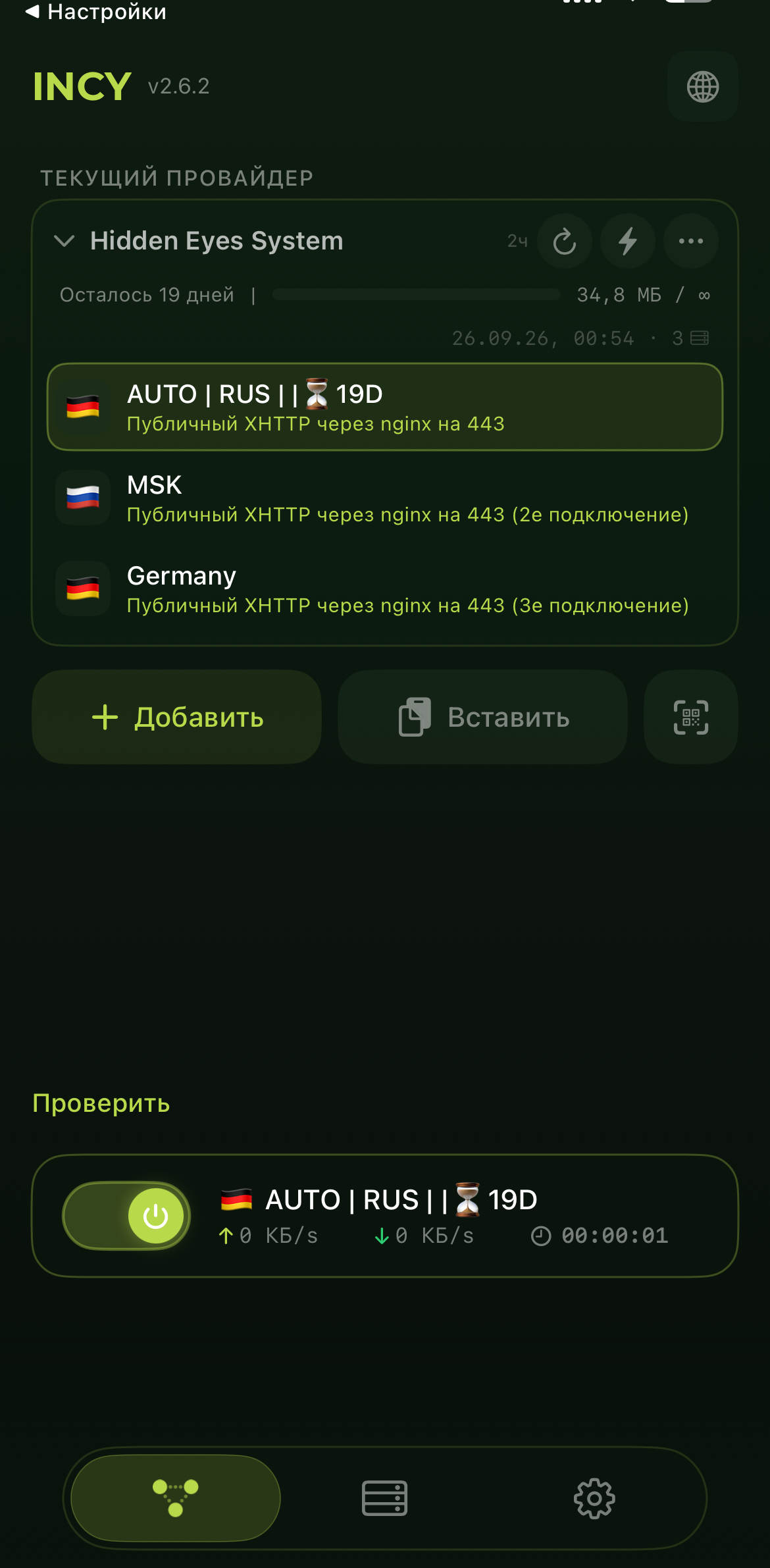
Incy after importing Hidden Eyes System: profile list and connection switch
3. Choose a Hidden Eyes System profile, such as AUTO. Tap the connection switch and confirm the system prompt. Open full-size image ↗

Other Android apps

After a renewal or profile-list change, open the app's subscription menu and refresh it.

PHONE OR TABLETiPhone and iPadShow Wrabbit Proxy, Incy, and Happ
App availability depends on the App Store country or region. In Russia, Wrabbit Proxy is an available iPhone option. Incy's US App Store listing is an international option; an installed copy can still import a subscription.
Wrabbit ProxyRecommended option for iPhone in Russia
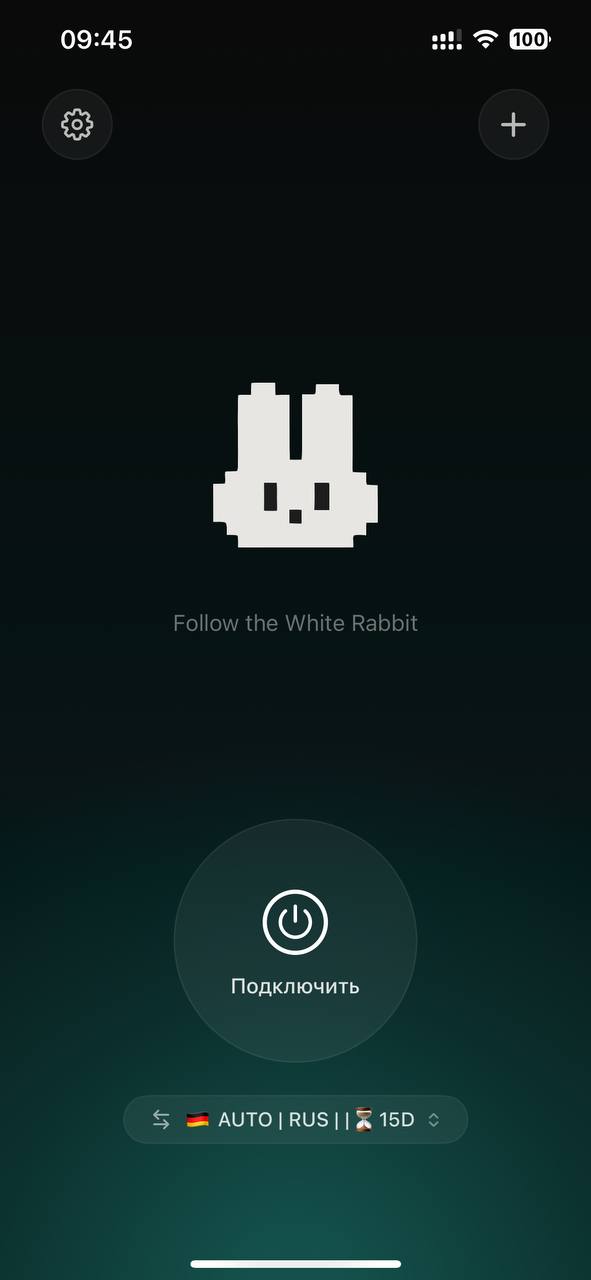
Wrabbit Proxy on iPhone with an added subscription, selected profile, and connect button
1. Open subscription setup and paste your copied link. 2. Choose a profile. 3. Connect and confirm the system prompt. Open full-size image ↗

After renewal or a profile-list change, refresh the subscription in Wrabbit Proxy.

IncyImport a subscription · international App Store option
Incy home screen with Add button
1. Tap “+ Add”. Open full-size image ↗
Incy subscription link form
2. Paste the subscription link and tap “Add”. Open full-size image ↗
Incy profile list and connection switch
3. Choose a profile and enable the connection. Open full-size image ↗
HappImport a subscription
COMPUTERWindows PC — HappShow setup instructions
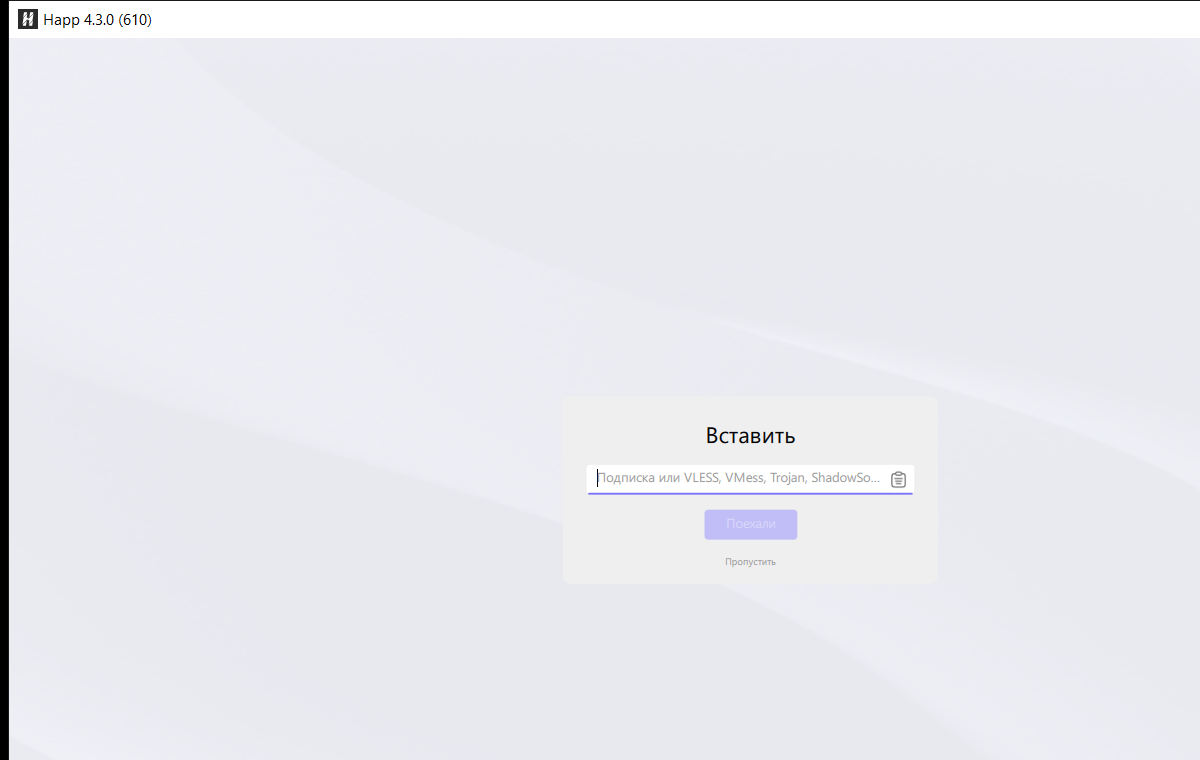
Happ for Windows with the subscription field and Go button
1. Paste the copied link. 2. Click “Go”. Open full-size image ↗
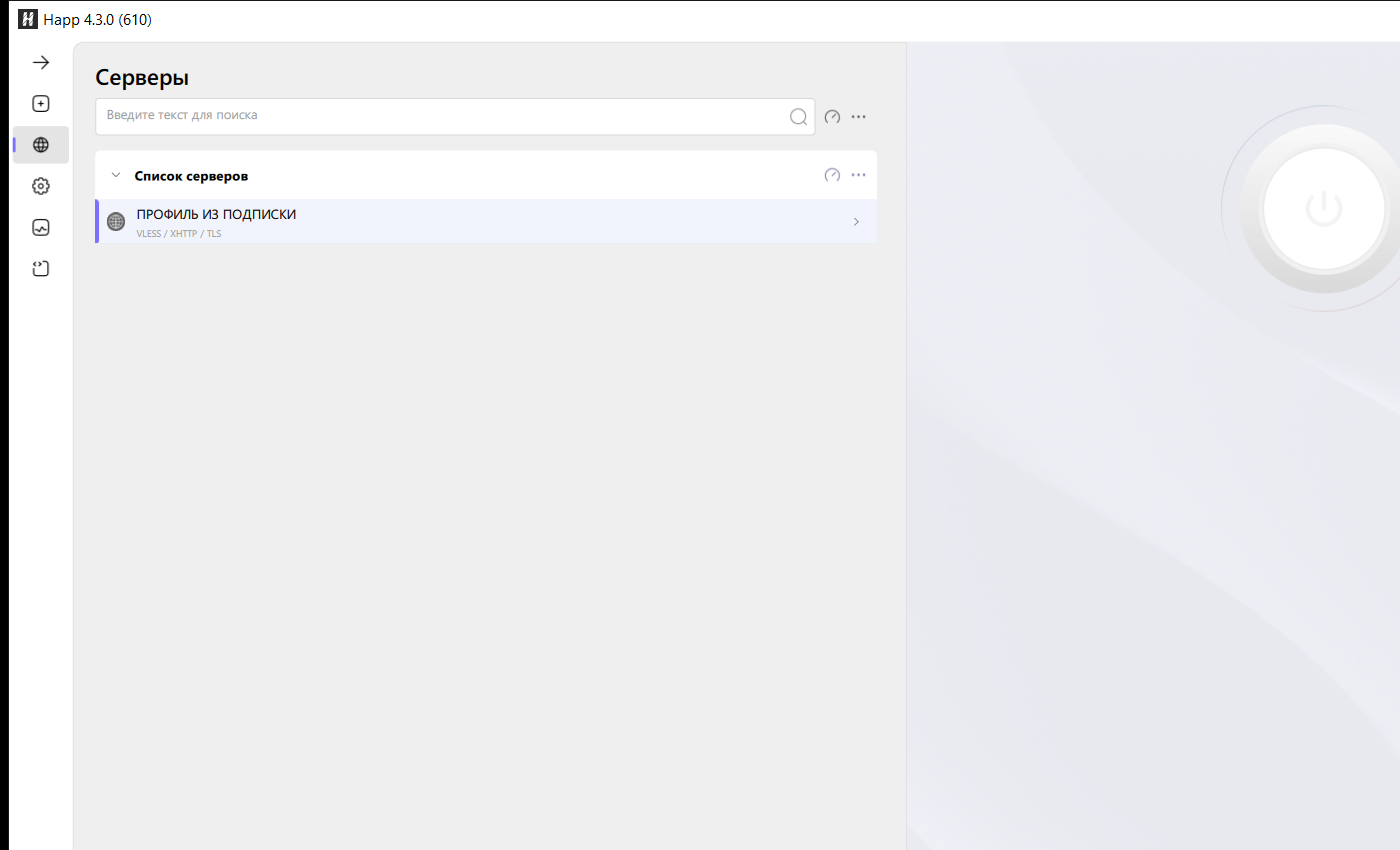
Happ for Windows with profile list and connection button
3. Choose a profile. 4. Click the connect button and allow the system prompt. Open full-size image ↗

IF IT DOES NOT CONNECT

Four quick steps

  1. Refresh the subscription in the app.
  2. Choose another profile from the list.
  3. Check that your device date and time are automatic.
  4. If the issue remains, open the protected support page from your account.